
Pure SUB
Bass Design Synthesizer
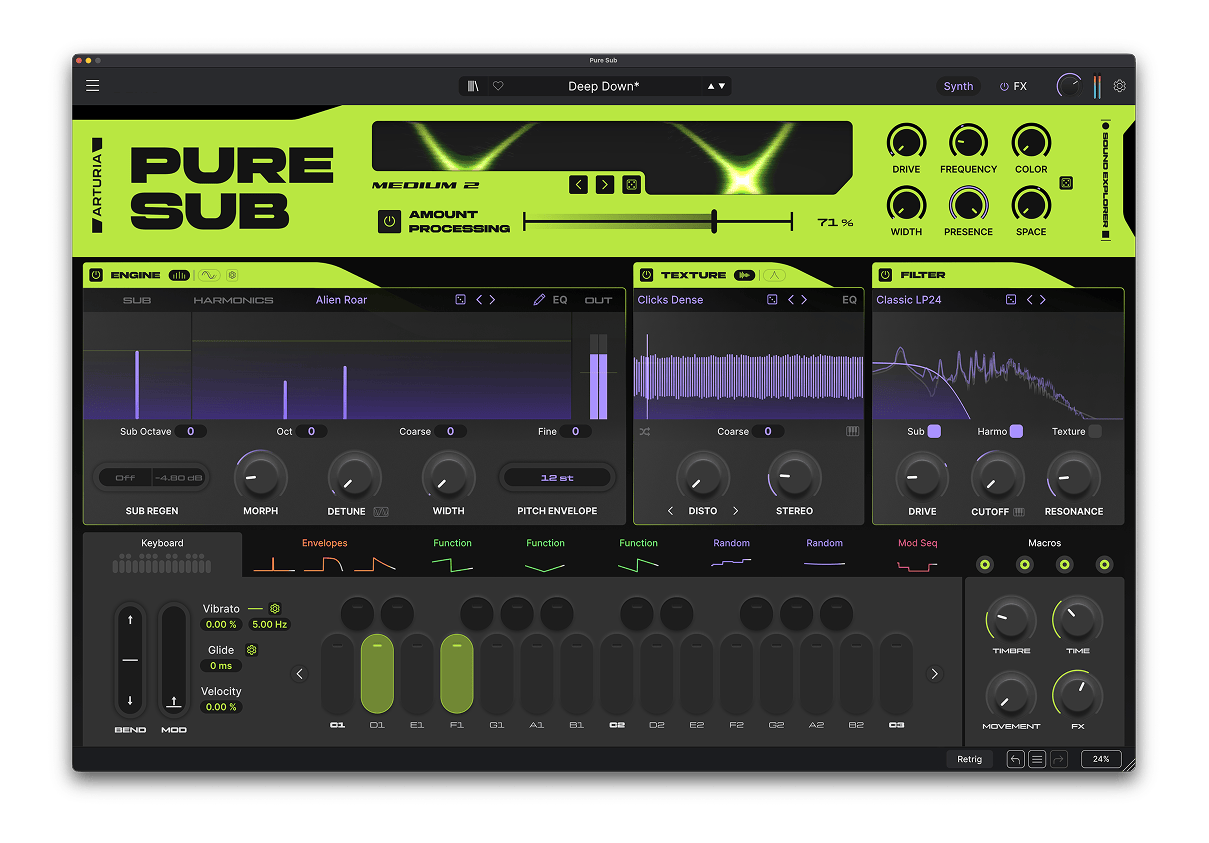
1. Download & install the Arturia Software Center (ASC)
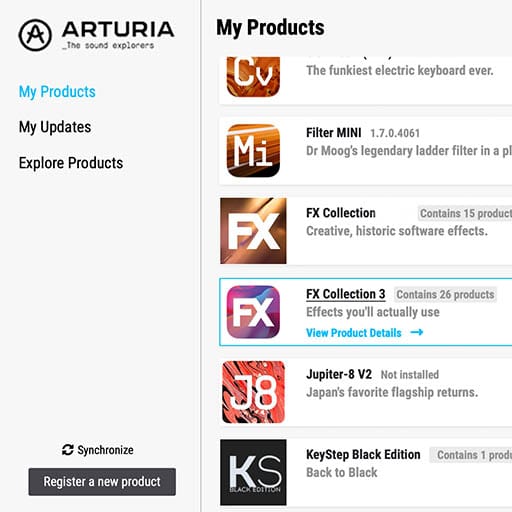
The Arturia Software Center (aka ASC) lets you activate, install and update your Arturia virtual instruments on your computers.
It will let you access the software you own as well as demos of the other titles in the Arturia catalog.
2. Log into the Arturia Software Center
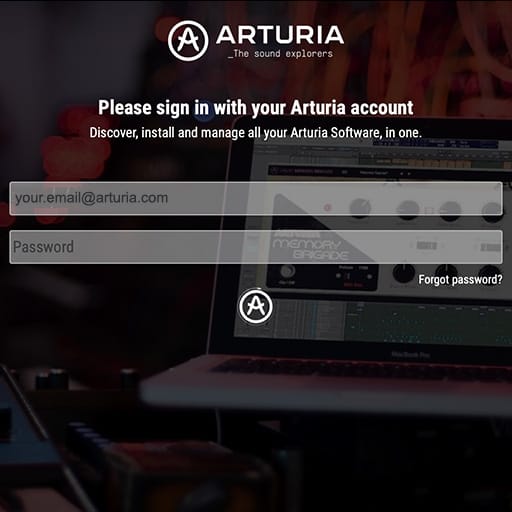
Enter the same email address and password as for your My Arturia account. You will then be able to find your Product License on the main panel.
If you don’t have a My Arturia account, click on create account and follow the process to create one.
If you're using an offline computer, please follow the process described in this this article
If you have purchased your software license on the Arturia website, it has been automatically registered into your account. Otherwise click on the button “Register a new product” on top of the main window.
3. Install and Activate your product through the ASC
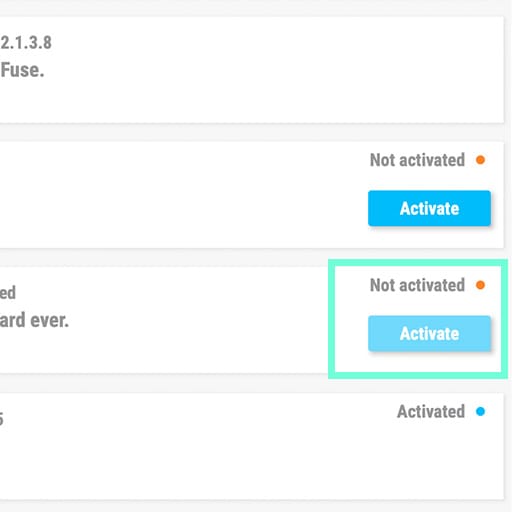
Look for your product in the list and click on the “Install” button to launch the silent installation process.
You will be asked to define the destination folders on the first time.
Your product will remain in demo mode until it is activated. To do so click on the “Activate” button. Your brand new effect will now be activated.
You are now able to use it without restriction on up to 5 different computers simultaneously. To do that, repeat this operation on your other computers.
4. Launch Your Product
Your product is not available as a standalone software.
It must be used in a DAW (Digital Audio Workstation).
Click on the icons to see how to select and use your new effect in the most popular DAWs:
Discover, experiment, enjoy!

Ableton Live

Bitwig

Cubase

FL Studio
Logic Pro X

Pro Tools

Studio One
Digital Performer
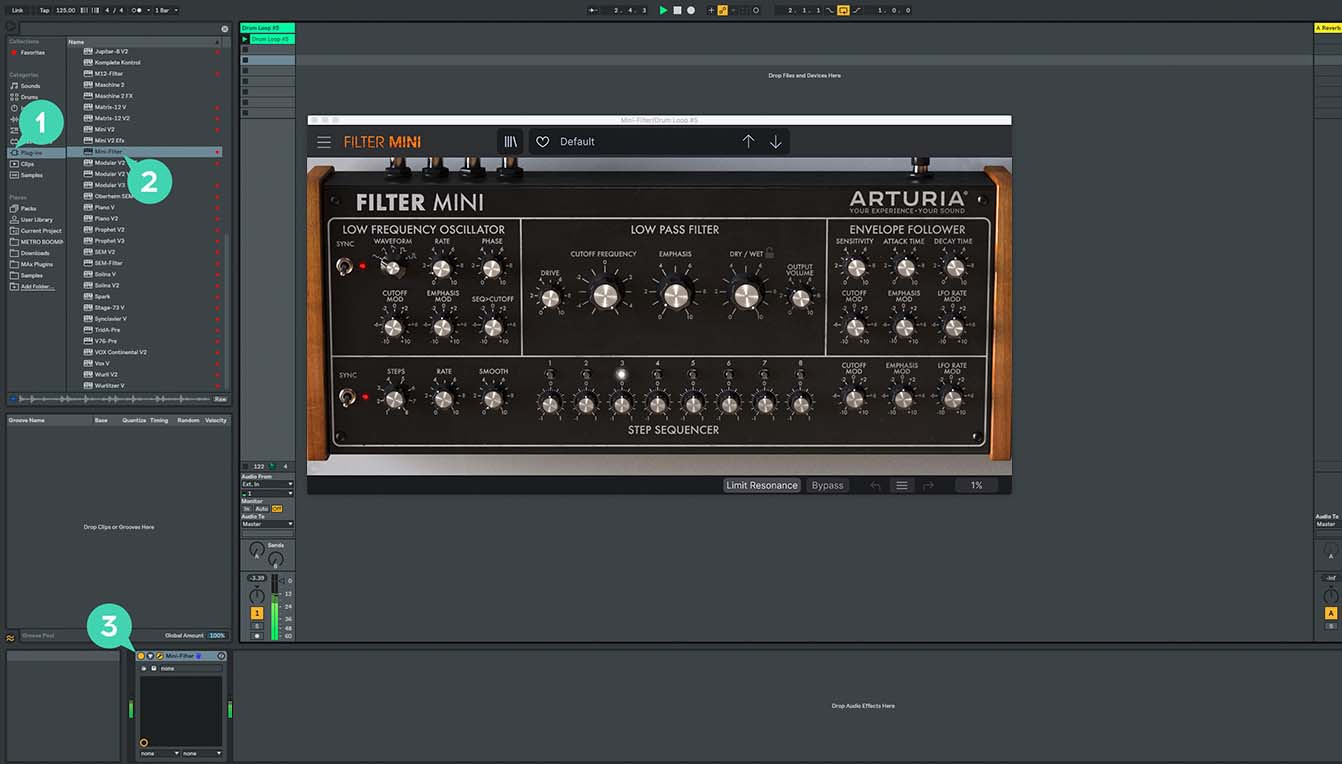
For Ableton Live
1/ Open the Live browser, and click on the 'Plug-ins' section.
2/ In the VST or Audio Unit* folder, browse the virtual effect of your choice.
3/ Drag & drop it in your track or FX return.
Pure SUB
Tutorials
Tutorials | Pure SUB | Overview
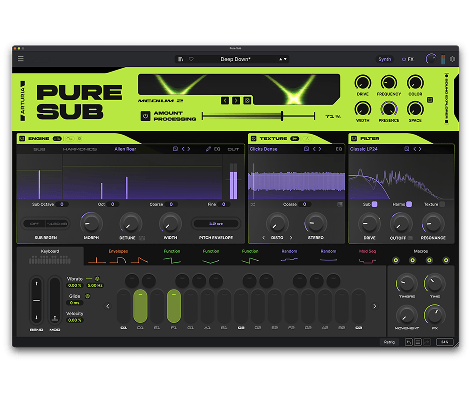
Join Joe Sheldrick for a walkthrough of Pure SUB, exploring its dedicated sound-design stages, bass-focused processing and intuitive modulation workflow. Discover how 300 presets, the 33-mode SUB Processor and a 12-slot FX Rack take you from clean foundations to deep, hard-hitting and evolving bass.
Pure SUB
How To's
Tutorials | Pure SUB | How to Make a Wide Reese Bass
Joe explores Pure SUB’s dedicated Reese engine to create a wide, aggressive bass from its Unisaw waveform. Detune, Morph modulation and moving phaser notches generate beating, swirling movement before EQ and compression bring the spectrum under control.
Tutorials | Pure SUB | How to Make a Classic House Bass
Follow Joe as he builds a classic house bass by combining a solid sub foundation with the House Starter waveform and focused low-pass filtering. See how subtle SUB Processor drive, multiband compression and EQ add punch, presence and control without compromising the low end.
Tutorials | Pure SUB | How to Make a Heavy Dubstep Wobble
Joe constructs a heavy dubstep wobble from a clean sub foundation, using key-tracked Functions to animate harmonic Morph and filter Drive. Explore how white-noise texture, Rage Diode filtering, Smooth Clip distortion and multiband compression create raw, aggressive movement.
Tutorials | Pure SUB | How to Make a Punchy 808 Bass
See how Joe transforms a clean sub foundation into a modern, punchy 808 using layered pitch transients, subtle harmonics and Corrosion noise. Filter drive, SUB Processor character and tape saturation preserve its physical weight while helping the sound translate across different playback systems.
Tutorials | Pure SUB | How to Make an Evolving DnB Bass
In this walkthrough, Joe creates a deep DnB bass that gradually evolves while maintaining a stable low-end foundation. Amp, Pitch and Mod envelopes combine with Function modulation, filter drive and subtle delay to introduce harmonic movement and controlled atmospheric depth.
Need more help ?
Our support team is happy to help you with questions on how to use Arturia instruments. You can contact them from this page :
Ask for help